
Exploring Block Details page
Table of Contents
- How to Find a Block
- Section A: Overview
- Section B: Summary
- Section C: Block Activity
- Section D: Details Information
The Block Details page provides a complete view of an individual block on Solana. It combines block metadata, transaction statistics, compute usage, instruction activity, rewards, and detected sandwich activity in one place.
How to Find a Block
You can open a Block Details page in two ways:
- Enter a block number in the Solscan search bar.
- Open the Blocks page (Learn more in this article) and select a block number.
At the top of the page, use the left and right arrows beside the block number to move to the previous or next block.
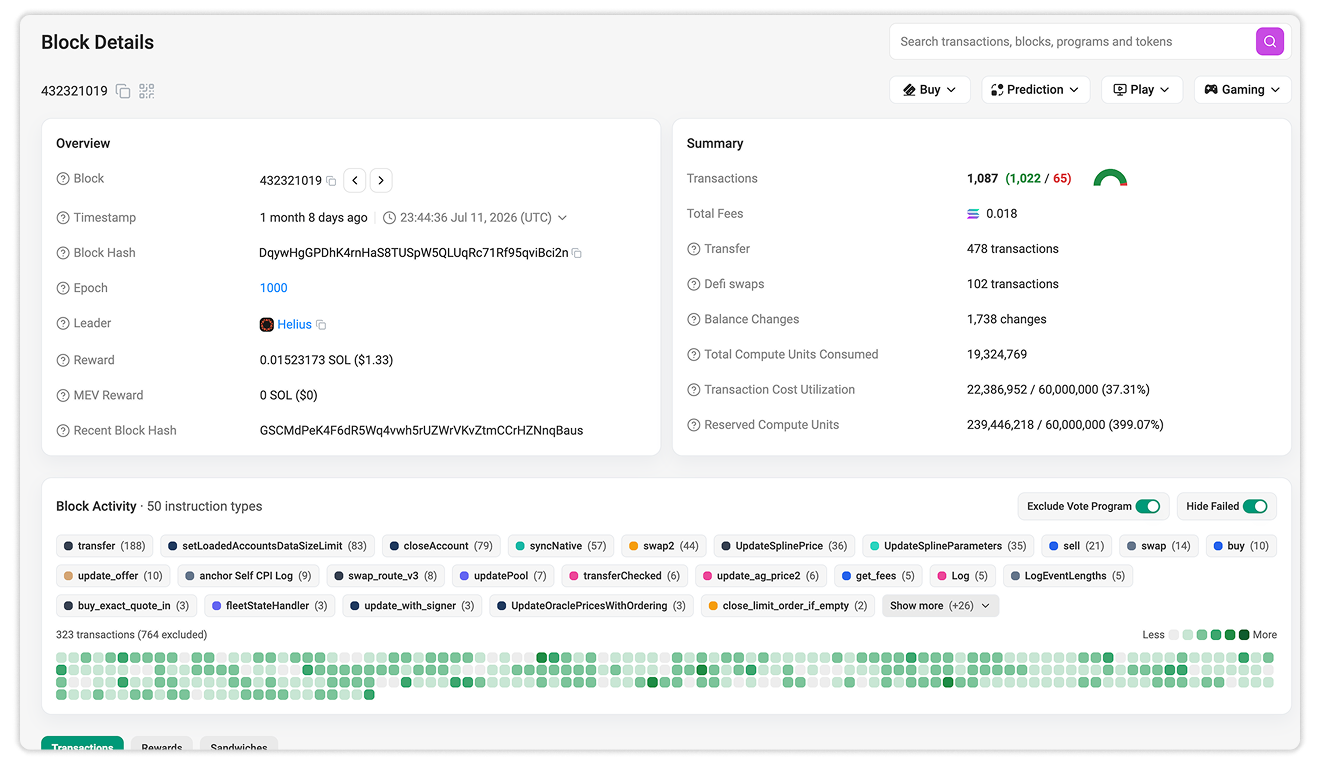
Section A: Overview
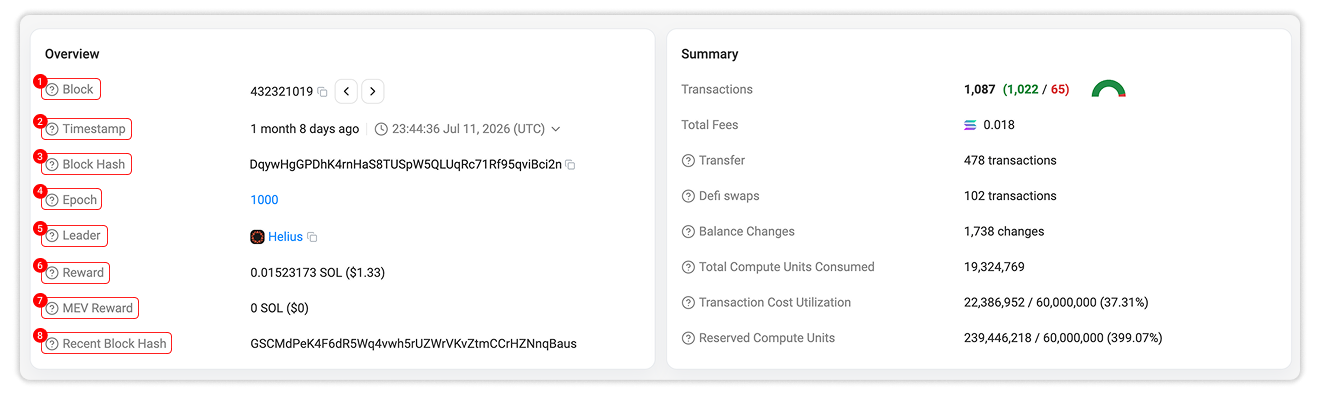
The Overview section displays the block’s core on-chain information:
- Block: The unique sequntial number identifying this block in the blockchain.
- Timestamp: When the block was produced. Click on the time to switch between UTC, local time, or Unix timestamp.
- Block Hash: The unique hash identifying the block.
- Epoch: The Solana epoch containing the block. Select the epoch number to open its details page.
- Leader: The validator responsible for producing the block.
- Reward: The SOL reward received by the block leader.
- MEV Reward: The bonus earned by optimizing transaction value through the ordering of transactions on the Solana network, if available.
- Recent Block Hash: The recent blockhash referenced by the block.
Block numbers, hashes, and addresses can be copied directly from this section.
Section B: Summary
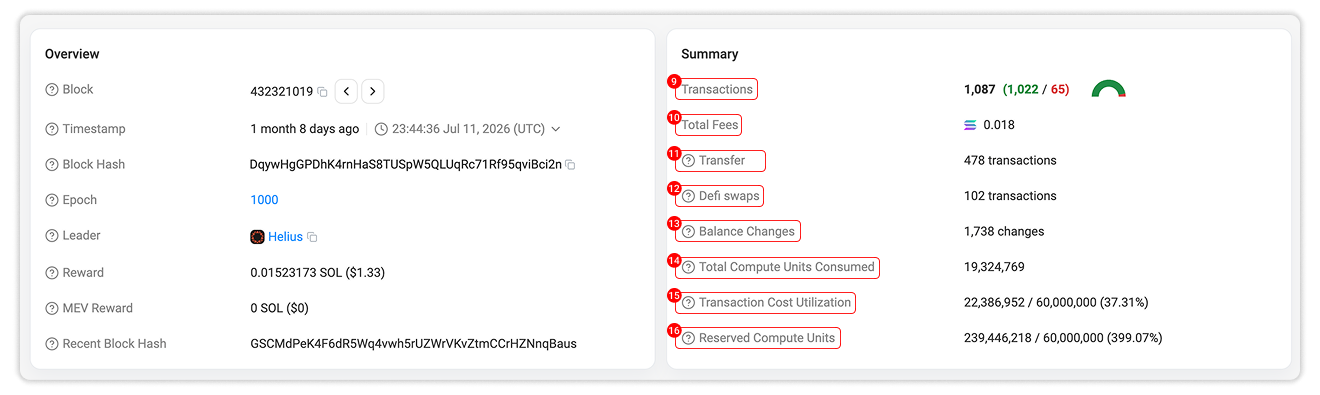
The Summary section provides aggregated activity and resource-usage metrics for the block:
- Transactions: The total number of transactions included in the block, divided into successful and failed transactions.
- Total Fees: The total transaction fees generated by the block.
- Transfers: The number of transfer transactions in this block.
- DeFi Swaps: The number of detected swap transactions across supported DeFi programs in this block.
- Balance Changes: The total number of net SOL and token balance of accounts touched by this block’s transaction.
- Total Compute Units Consumed: The compute units used while processing transactions in the block.
- Transaction Cost Utilization: The block’s transaction cost usage compared with the applicable block limit.
- Reserved Compute Units: The compute units requested or reserved by transactions compared with the block limit.
These metrics provide a high-level view of the block’s transaction load, activity composition, and computational demand.
Section C: Block Activity
The Block Activity section visualizes the transactions and instruction types within the block as an interactive heatmap. It provides a faster way to identify transaction patterns, instruction-heavy activity, and frequently used program operations without reviewing each transaction individually.
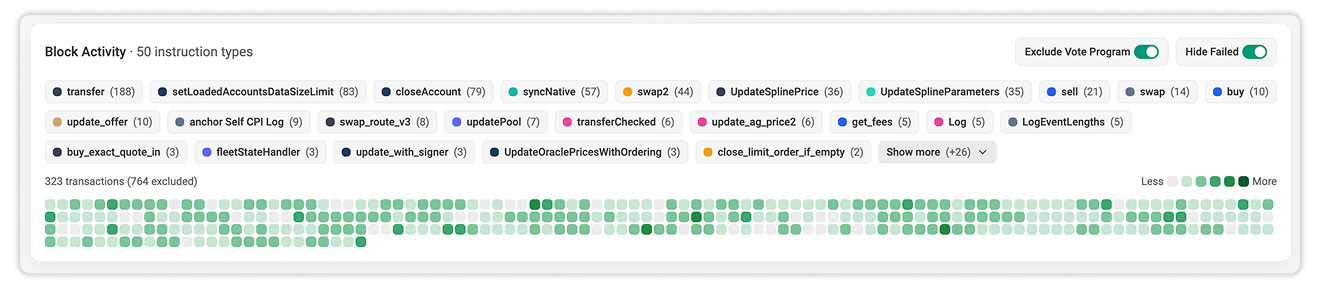
Instruction Types
The labels above the heatmap show the decoded instruction types detected in the block, such as transfer, burn, closeAccount, or swap. Select Show more to view all instruction types.
The number beside each instruction type represents how many times that instruction appears in the displayed activity.
Reading the Heatmap
Each square in the heatmap represents one displayed transaction in the block.
When no instruction filter is selected, the color scale runs from light to dark:
- Lighter squares represent transactions with fewer instructions.
- Darker squares represent transactions with more instructions.
This color intensity reflects the transaction’s instruction count, providing a visual indication of how many program instructions are associated with that transaction.
Hover over a square to view:
- Its position within the block
- The transaction signature
- Its execution status
- Its total instruction count
- The decoded instruction types and their occurrence counts
Select a square to open the corresponding Transaction Details page for a complete breakdown.
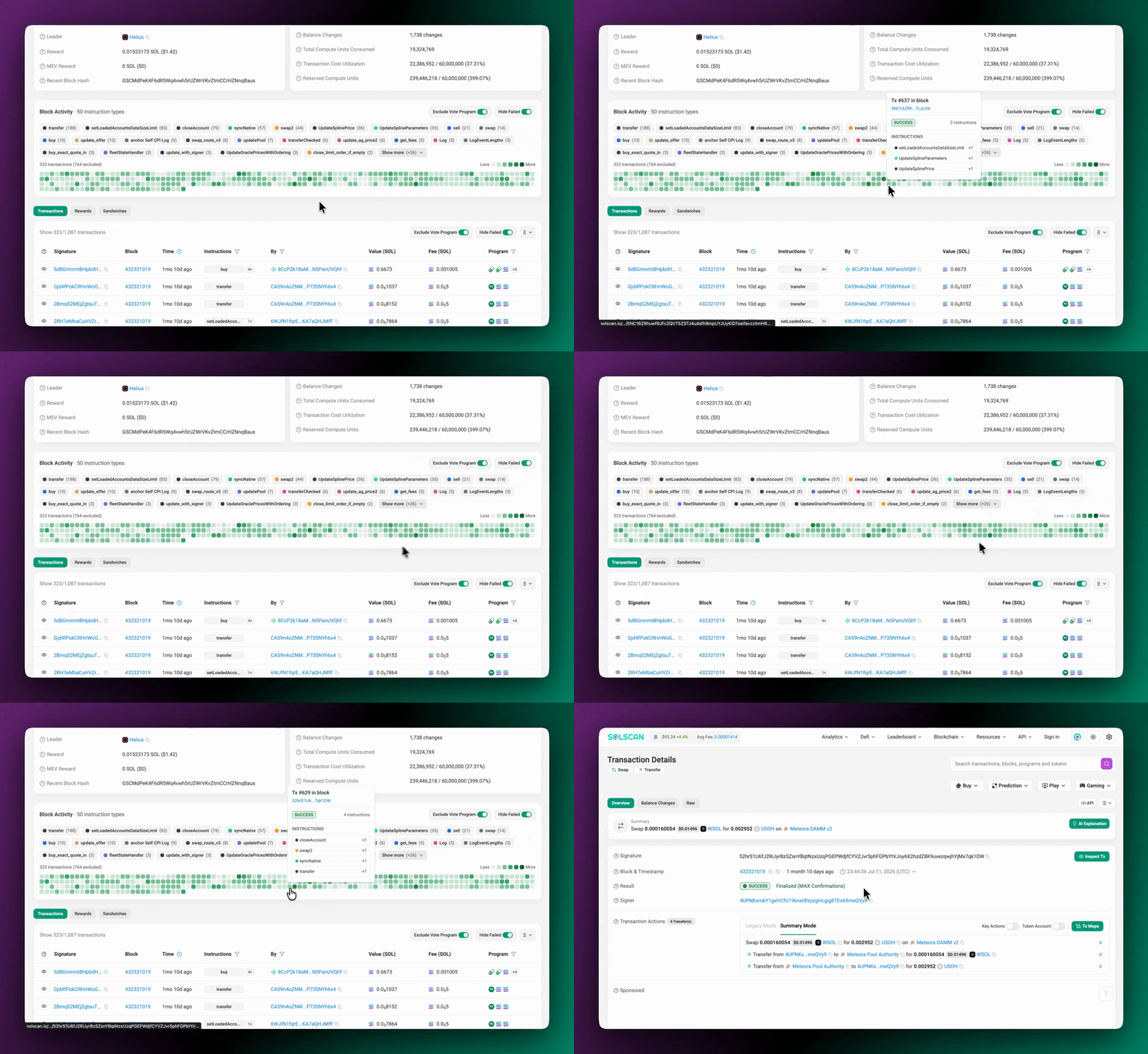
Filtering by Instruction
Select an instruction type above the heatmap to filter the visualization.
When a filter is active, Solscan highlights transactions containing the selected instruction and shows the number of matching transactions. This makes it possible to isolate specific activity, such as token transfers, swaps, account closures, or instructions associated with a particular protocol.
Select the active instruction again or choose another instruction to adjust the filter.
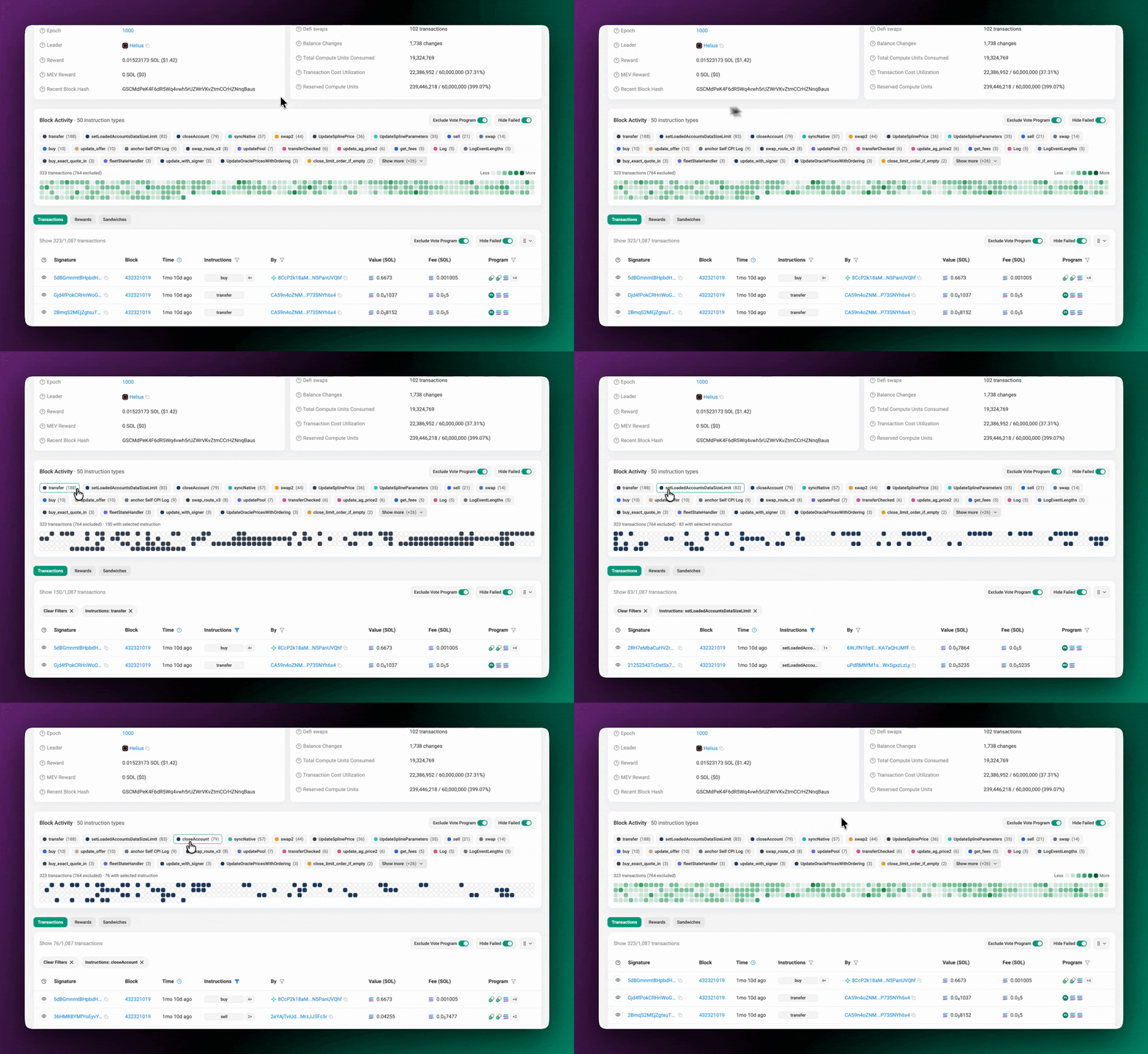
Additional Filters
The Block Activity section includes two additional controls:
- Exclude Vote Program: Removes vote transactions from the visualization, making non-vote activity easier to inspect.
- Hide Failed: Removes failed transactions from the displayed results.
The transaction count above the heatmap shows how many transactions are currently displayed and how many have been excluded by the active filters.
Section D: Details Information
Transactions
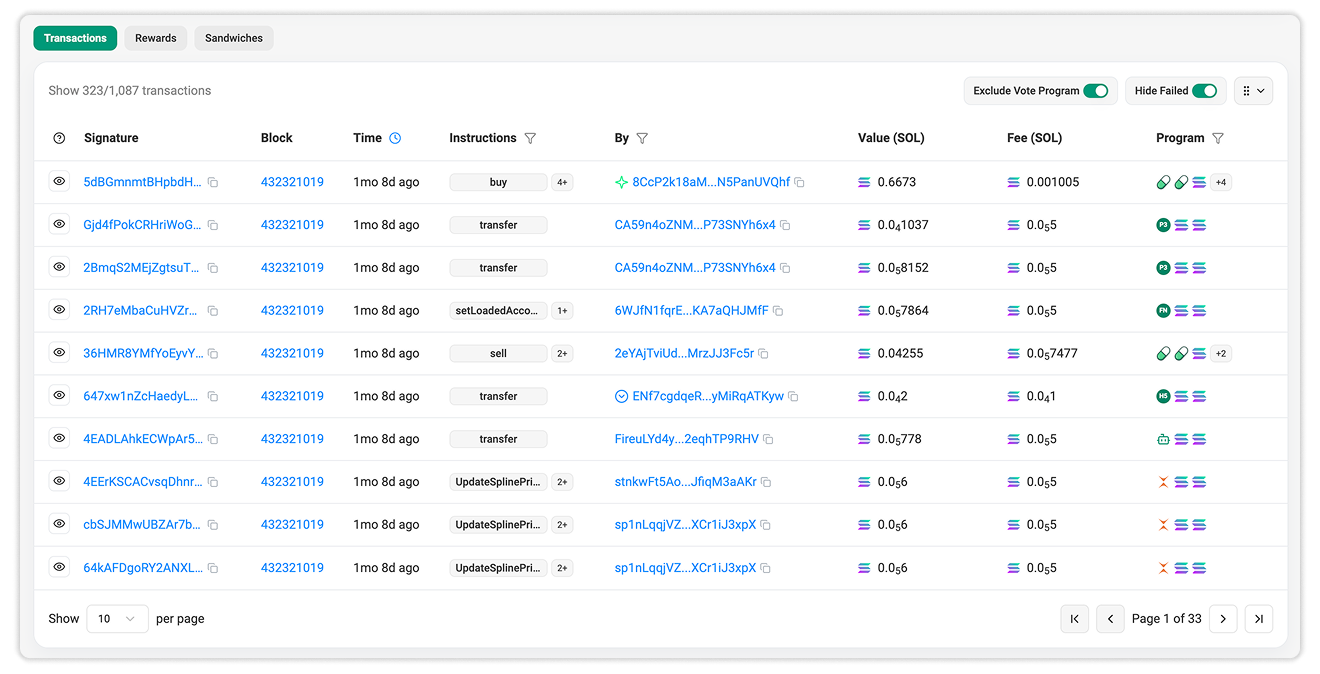
The Transactions tab lists the transactions included in the block. Each row includes:
- Signature: The unique transaction signature. Select it to open the Transaction Details page.
- Block: The block containing the transaction.
- Time: How long ago the transaction was processed.
- Instructions: The primary decoded instruction types found in the transaction.
- By: The account associated with submitting or initiating the transaction.
- Value: The SOL value associated with the transaction.
- Fee: The transaction fee paid in SOL.
- Program: The programs involved in the transaction.
Use the available column filters to narrow the results. You can also exclude Vote Program transactions, hide failed transactions, or change the number of columns displayed per page.
Rewards
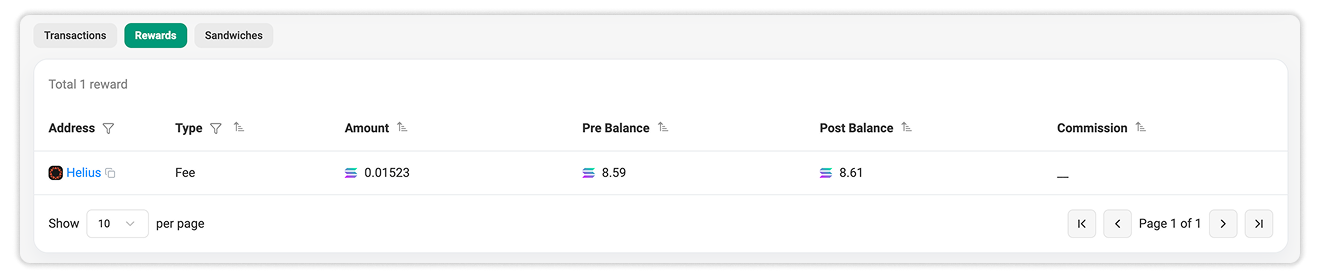
The Rewards tab displays rewards distributed through the block. Each record includes:
- Address: The account that received the reward.
- Type: The reward category.
- Amount: The amount of SOL credited or debited.
- Pre Balance: The account’s balance before the reward was applied.
- Post Balance: The account’s balance after the reward was applied.
- Commission: The commission rate, when applicable.
This section can be used to verify the reward received by the validator responsible for producing the block.
Sandwiches
The Sandwiches tab displays sandwich activity detected within the block, when available.
A sandwich attack is a form of transaction-ordering activity in which an MEV bot places transactions around another trade to benefit from the resulting price movement.
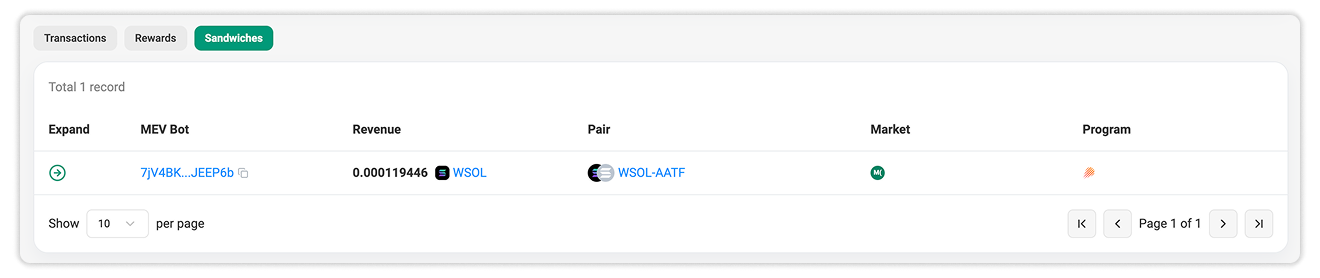
Each detected record includes:
- MEV Bot: The address associated with the detected bot.
- Revenue: The estimated revenue attributed to the activity.
- Pair: The token pair involved.
- Market: The market where the activity occurred.
- Program: The program involved in the transactions.
Select the expand control to inspect the detailed sandwich flow associated with a detected record.

Still Have Questions?
Supported Explorers
 Solscan
  Eclipsescan
  Fogoscan