
Solscan Site Settings
Solscan Site Settings allow you to customize the default display and behavior of the Solscan explorer. These options control how on-chain data is presented across the platform, helping you tailor the interface for clearer, more efficient analysis.
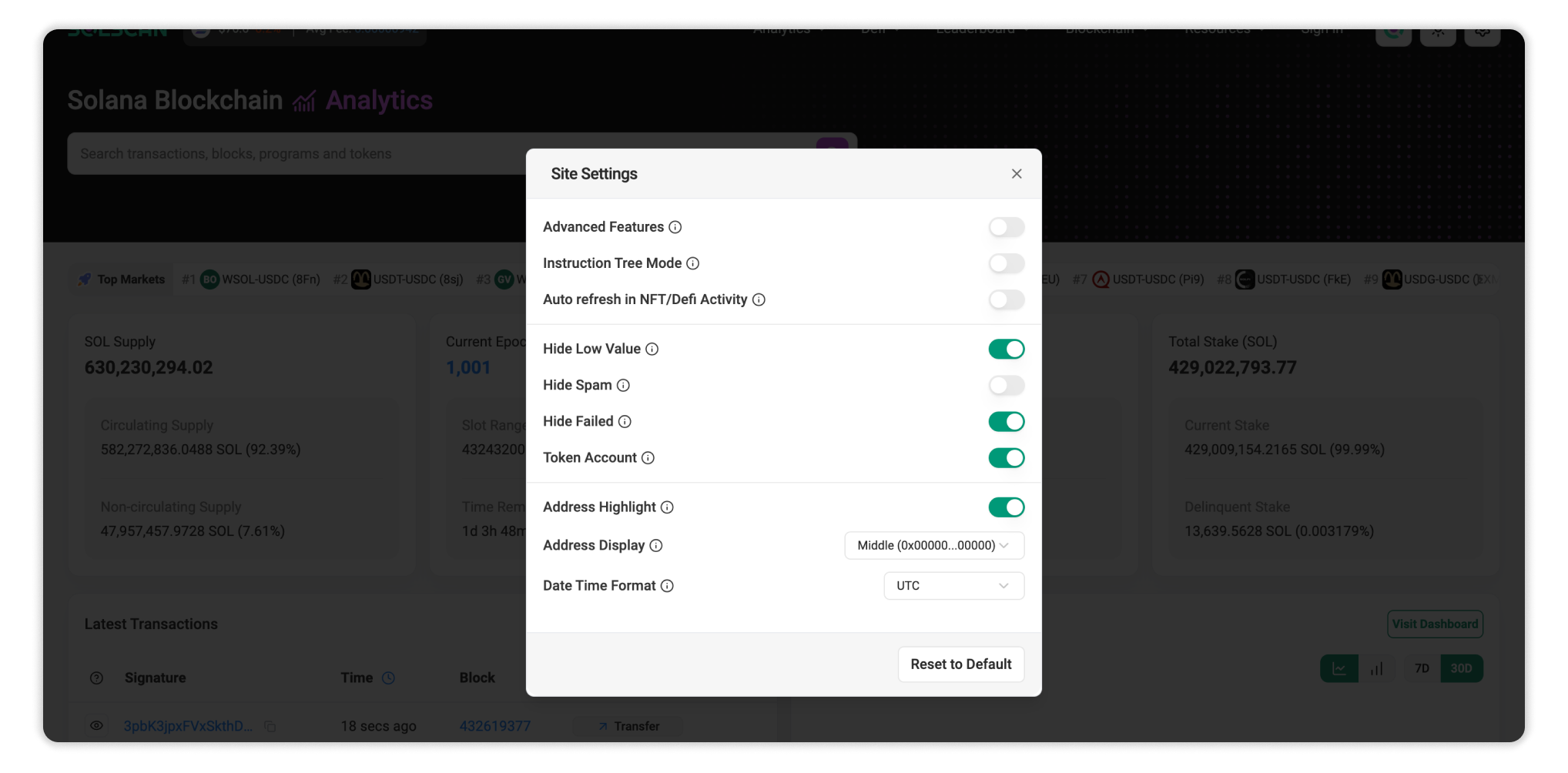
How to Access Site Settings
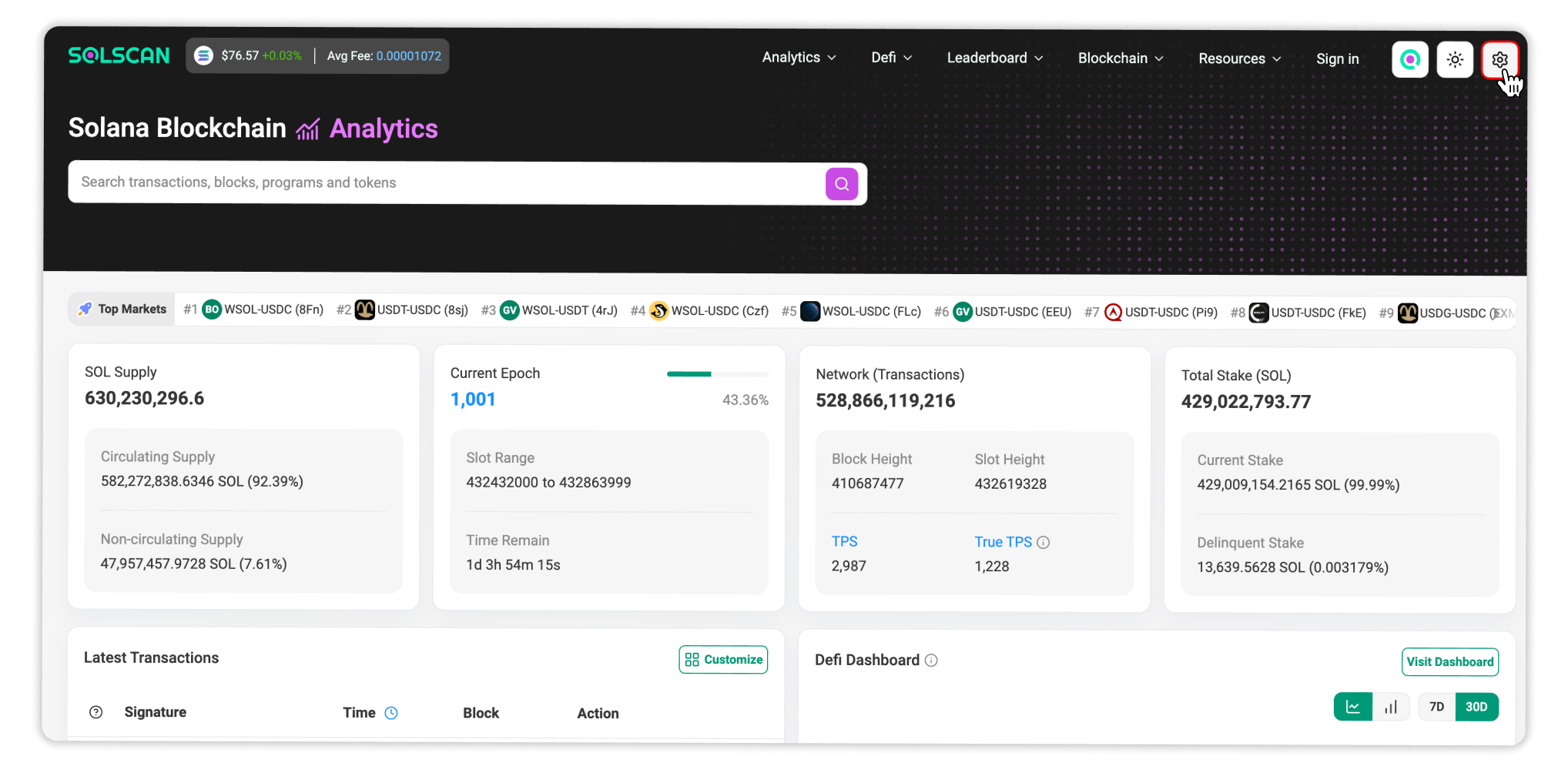
You can access Solscan Site Settings directly from the homepage:
- Open Solscan.io.
- Click the Settings button next to the Theme Mode option in the top-right corner of the website.
All changes are applied immediately.
Site Settings Options
1. Advanced Features
Advanced Features provide greater visibility and control on the Transaction Details page:
-
Auto Expand Instruction Details and Program Logs: Automatically expand all instruction details and program logs when opening a Transaction Details page.
-
Multi-Color Address Highlighting: Highlight multiple addresses in different colors when viewing a transaction. This is useful for analyzing complex transaction logs and visually separating key addresses.
New Feature: Color-Highlight Addresses on Solscan! 🎨
— Solscan (@solscanofficial) March 12, 2025
Easily assign colors to addresses in the Transaction Details page for better clarity, making it simpler to track the flow of funds and analyze transaction paths - especially in Instruction Details.
Hover over any addresses… pic.twitter.com/JdY8RfHGaZ
2. Instruction Tree Mode
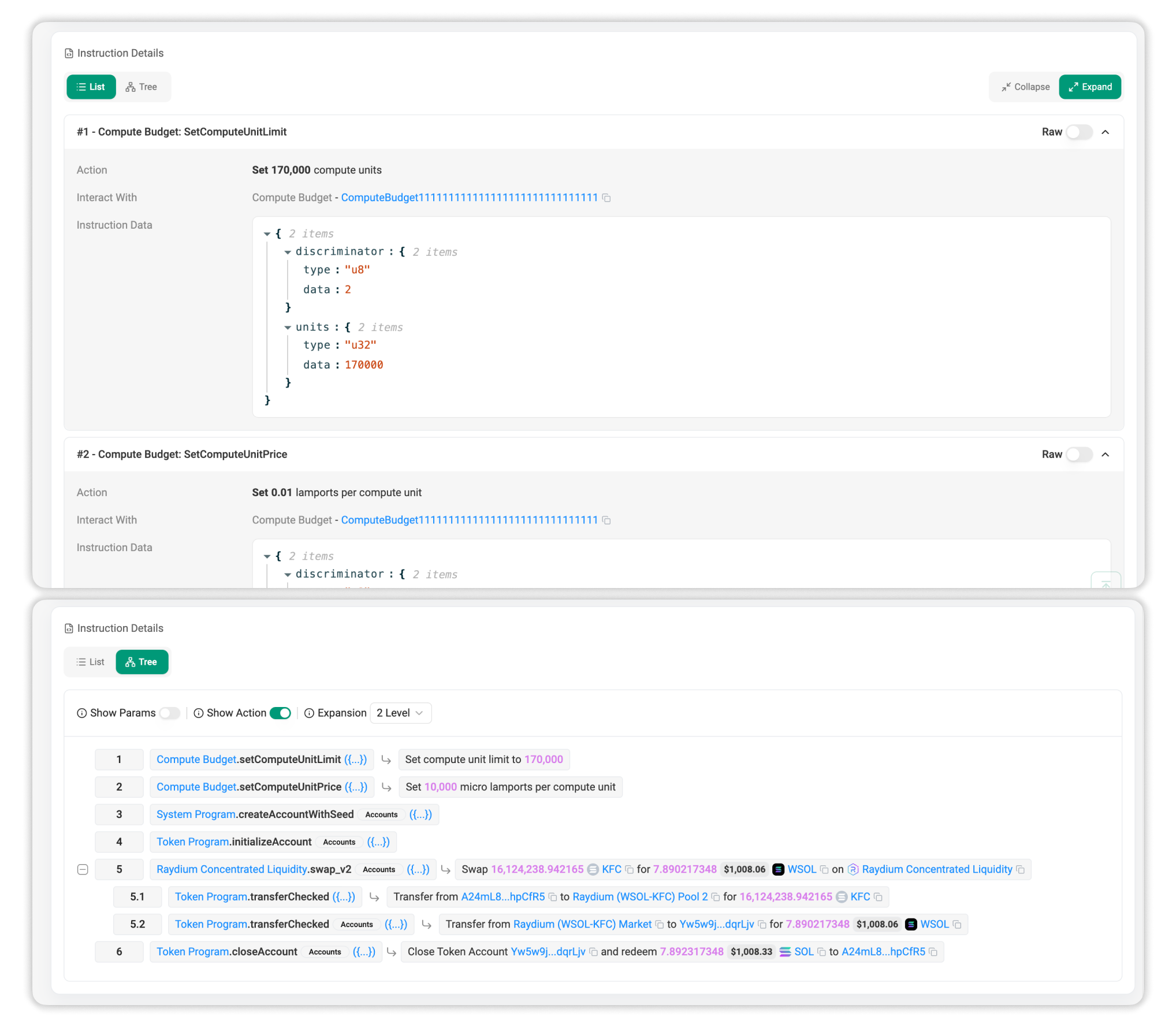
Instruction Tree Mode changes the instruction details layout from a linear list to a hierarchical tree structure. This makes it easier to understand execution flows, parent-child relationships between instructions, and nested program calls within complex transactions.
3. Auto Refresh in NFT/DeFi Activity
Auto Refresh automatically updates NFT and DeFi activity pages without requiring a manual page reload. This is useful for monitoring active wallets, marketplaces, or protocols where new activity occurs frequently.
4. Hide Low-Value Transfers
When enabled, this setting hides token transfers with little or no value across all transfer tables. This reduces visual noise and keeps the tables focused on transfers involving meaningful value movement.
5. Hide Spam Tokens
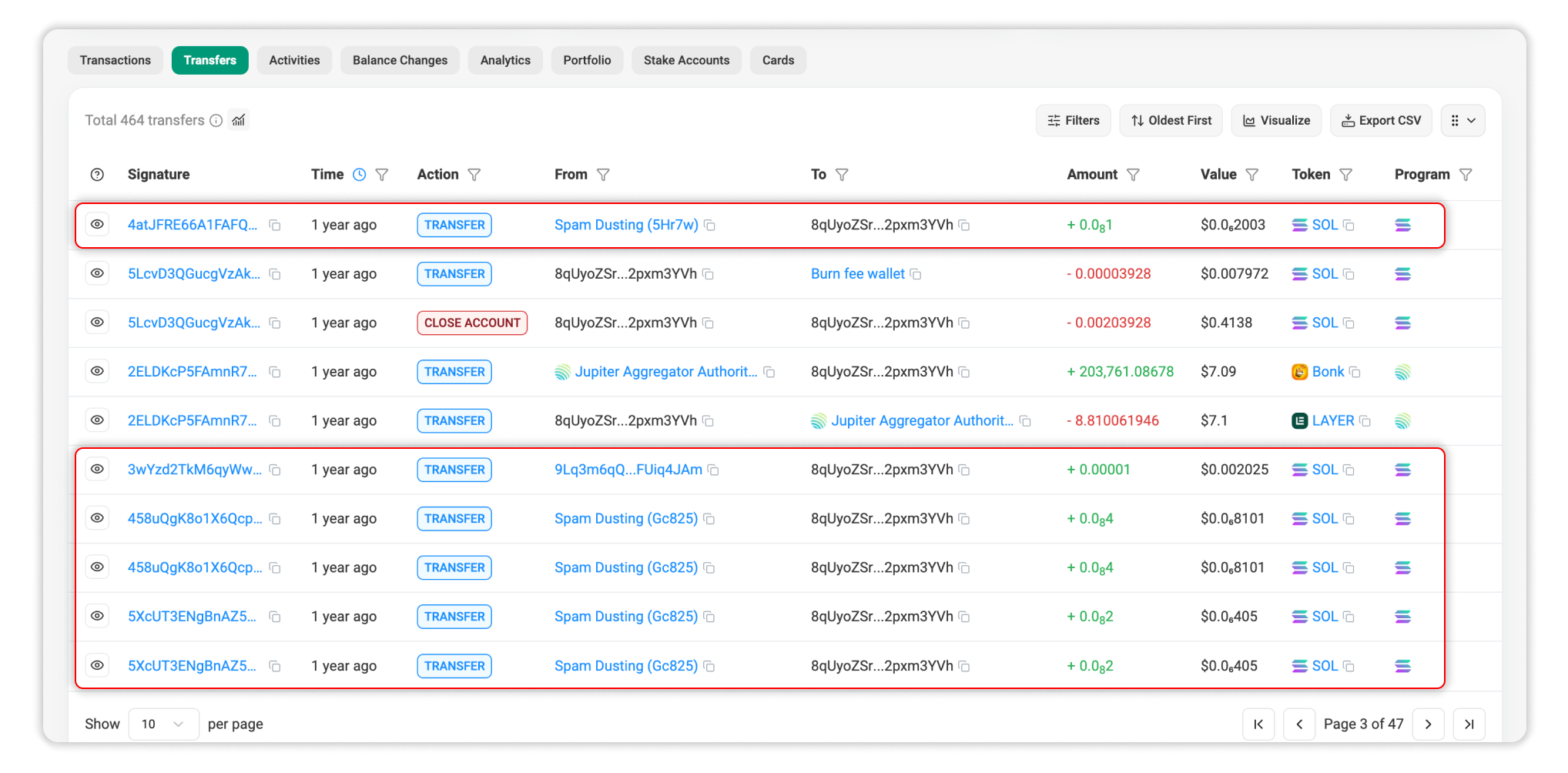
Hide Spam Tokens automatically filters out transfers involving tokens identified by the Solscan team as spam, scams, or suspicious assets. Enabling this setting removes irrelevant or potentially misleading token activity from the displayed data.
6. Hide Failed Transactions
Hide Failed Transactions automatically filters out unsuccessful transactions from all Transactions tables. This makes it easier to review completed activity without failed transactions adding unnecessary noise.
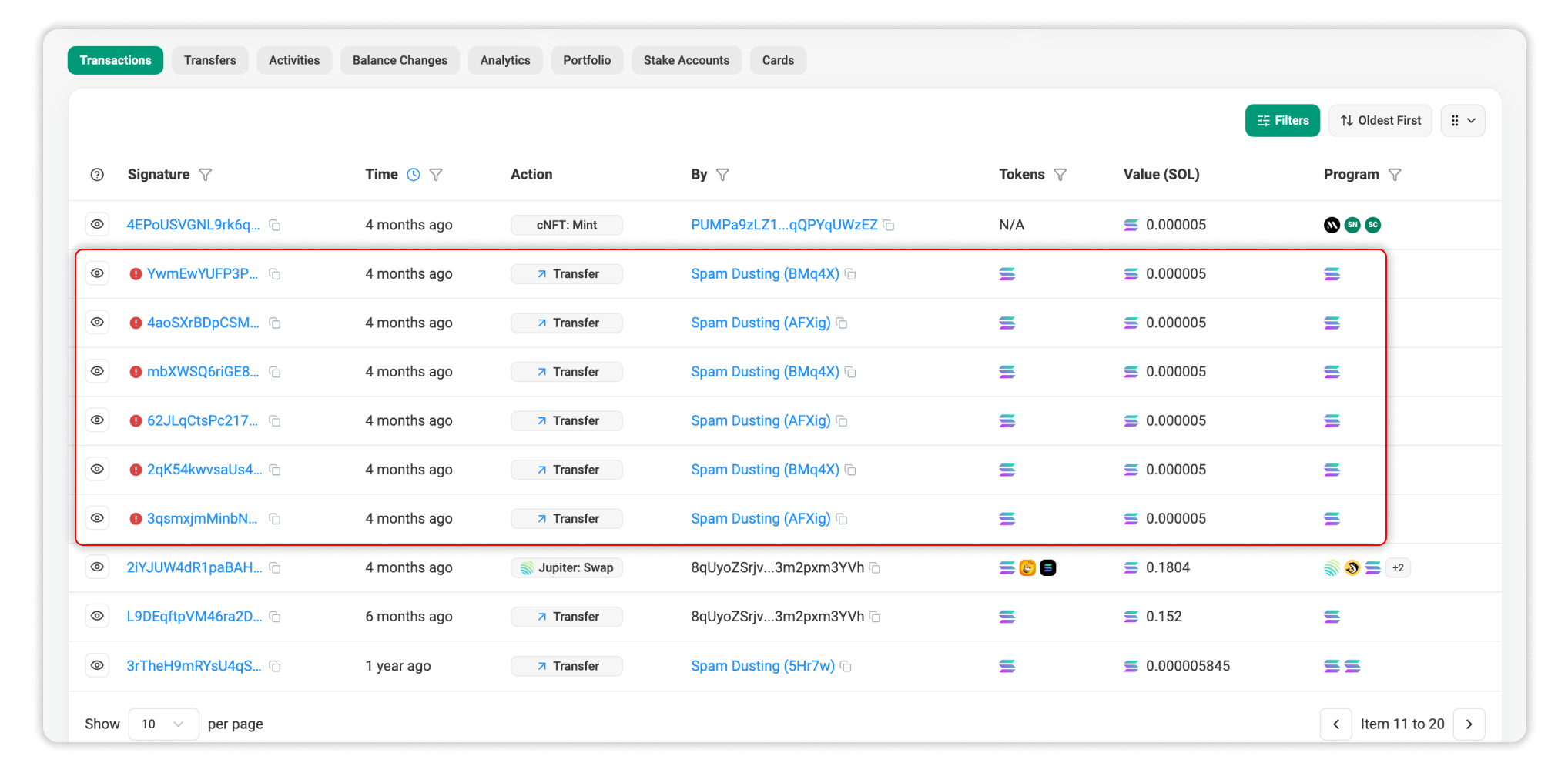
7. Show Token Account Transactions
When enabled, this setting displays transactions involving token accounts in activity tables. This provides a more complete view of activity connected to an account, including transactions performed through its associated token accounts.
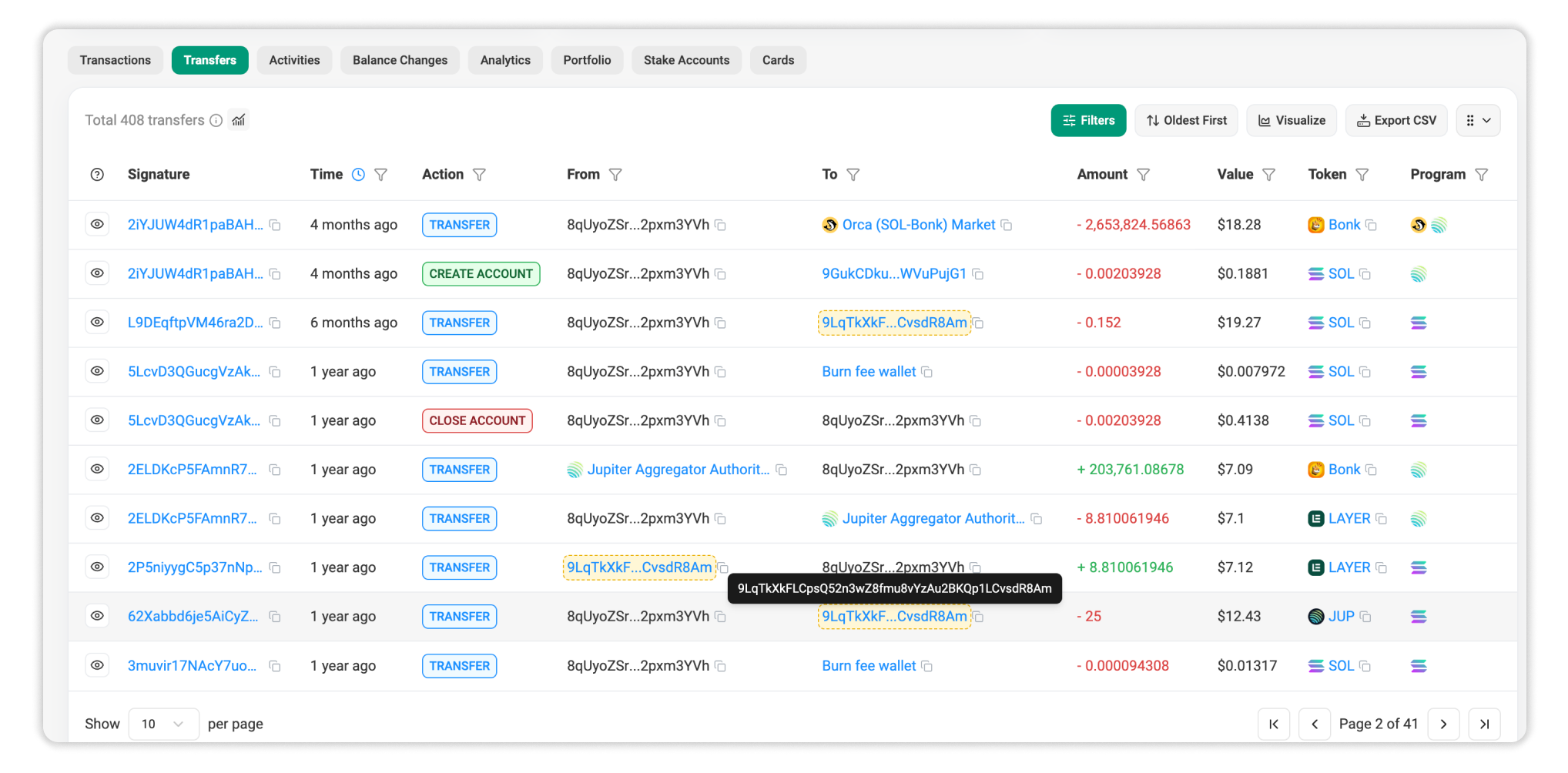
8. Address Highlight
Address Highlight automatically highlights every occurrence of an address when you hover over it. This makes it easier to see where a specific address appears on a page, especially in tables or transaction details involving multiple participants.
9. Address Display
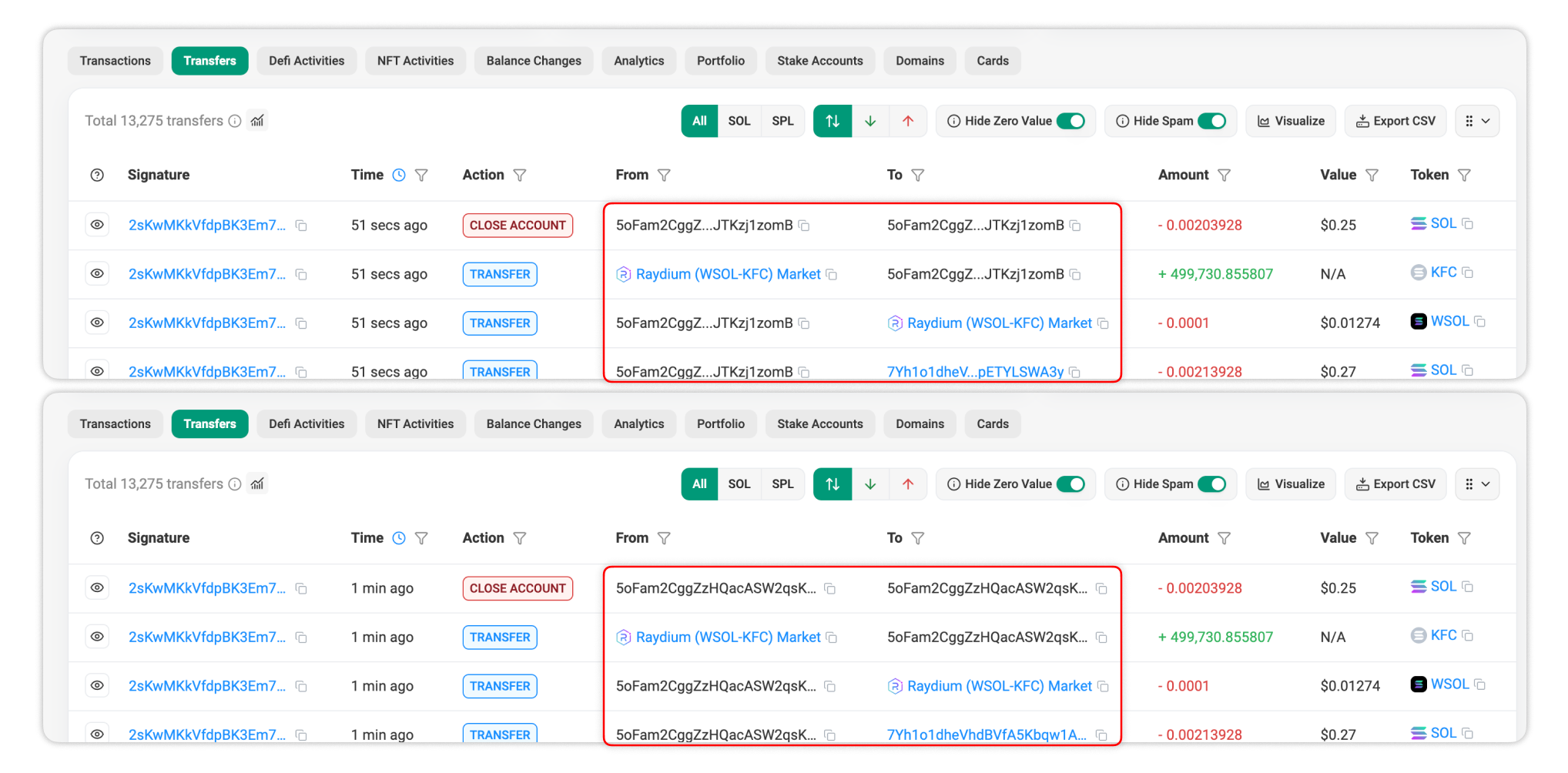
Address Display controls how addresses are shown across Solscan. By default, addresses display the first and last 10 characters, with the middle section truncated.
You can also switch to back truncation, which displays the beginning of the address and truncates the remaining characters. This makes it easier to locate a specific address using CTRL+F.
10. Date & Time Format
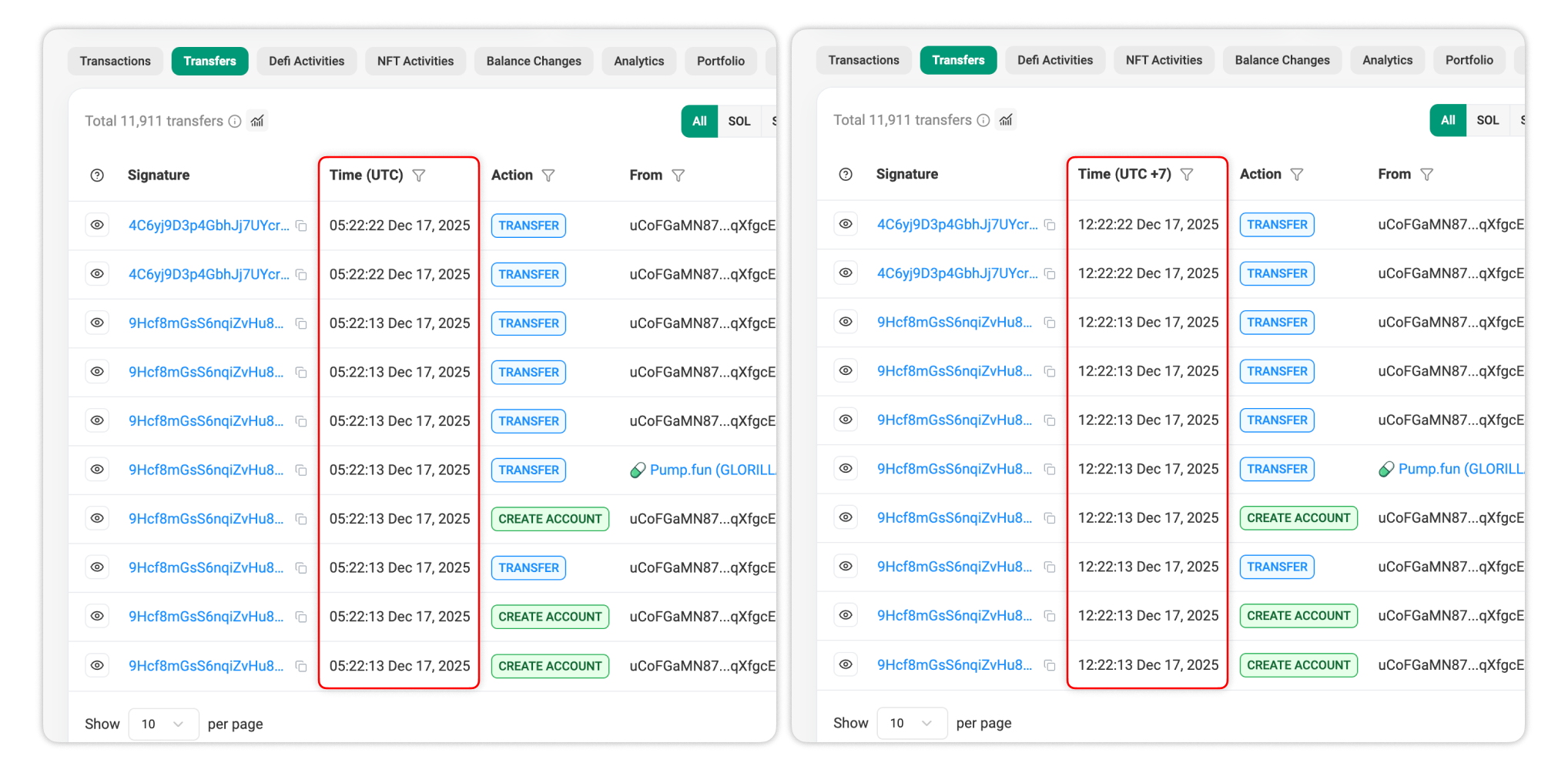
You can configure how block and transaction timestamps are displayed across Solscan by switching between UTC and your local time zone.

Still Have Questions?
Supported Explorers
 Solscan
  Eclipsescan
  Fogoscan